Volume Booster – Audio Center
- 4.6
- Rating
- 50.00K
- Installs
- Free
- Price

 Analysis by App-foxy
I installed Volume Booster – Audio Center to see whether it could make everyday phone audio easier to manage, rather than treating it as a simple “turn everything up” utility. My starting point was familiar: a video that sounded too quiet, a notification that was easy to miss, and the need to adjust sound quickly without digging through several Android menus. This free tools app from AinulMardhiyah is designed around that small but recurring problem.
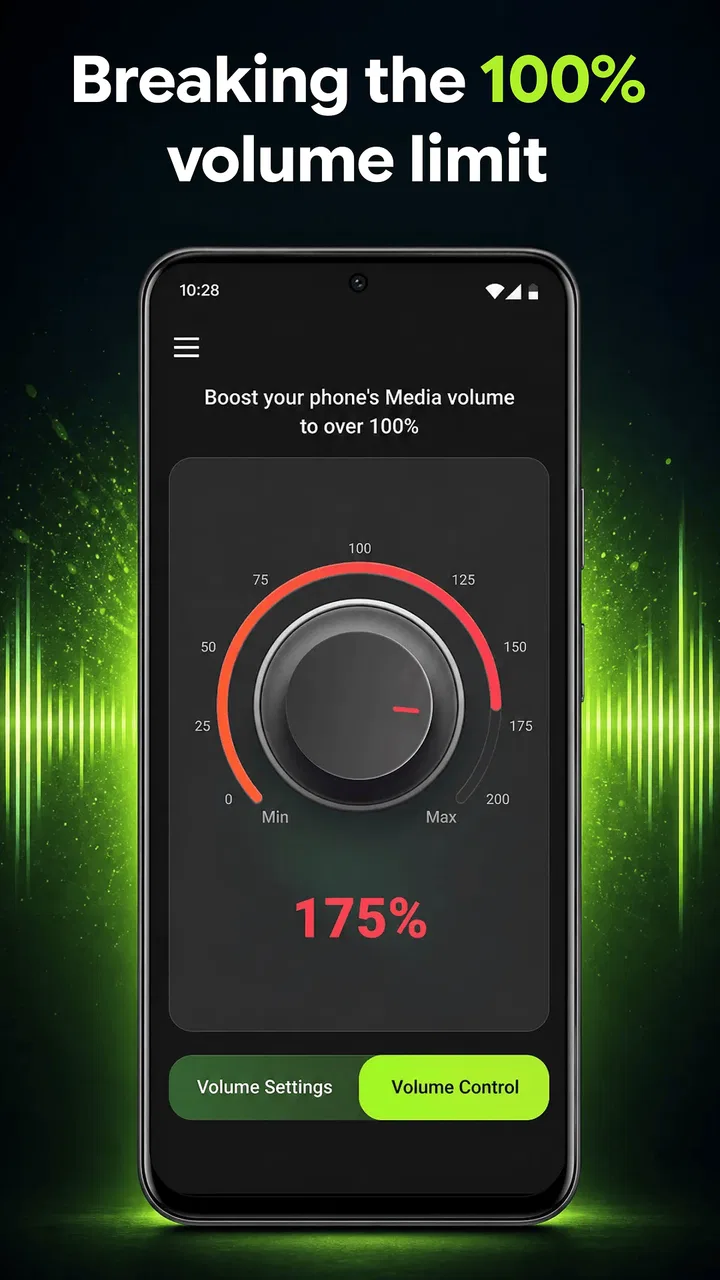
The app has a straightforward promise: help boost media volume and give you a more convenient way to handle phone sounds. That makes it most interesting for people who regularly switch between videos, music, calls, alarms, and notifications. It is available for everyone, runs on Android 8.0 or later, and its current version is 1.0. I found the appeal less in replacing the phone’s entire audio system and more in creating a focused place to deal with volume when the normal controls feel too limited or slow.
When the phone sounds too quiet
The most realistic reason to try this app is not a dramatic audio problem. It is the ordinary situation where the phone’s media slider is already high, yet spoken dialogue in a video remains difficult to hear over a fan, traffic, or a busy room. A similar issue appears when moving between headphones and the built-in speaker: a level that works with one output can feel weak or excessive with another.
You May Also Like

 Blood Strike: 2.5 Anniversary
Blood Strike’s Loadouts Turn Every Drop Into a Tactical Gamble
A close look at Blood Strike’s custom loadouts: how fast access to signature weapons reshapes its battle royale rhythm, rewards preparation, and narrows the gap between fights.

 Pandora - Music & Podcasts
Pandora’s Music Is Easy to Start, but Harder to Recover
Pandora’s strength is its low-effort path from a seed to a station. Its weak spot is how much confidence it asks you to place in connection, setup, and quiet recovery.

 8 Ball Pool
 Is Built on Rivalries, Rematches, and Routine
A close look at the rivalries, rematches, shared routines, and unanswered safety questions that turn a quick pool match into a persistent mobile community.

 Samsung Music
’s Quiet Strength Is Playing What You Already Own
Its reach comes less from spectacle than from dependable access to a personal library. That simplicity is both the app’s strongest retention engine and its ceiling.

 AccuWeather: Weather Radar
AccuWeather Review: A Quick, Clear Forecast for Everyday Decisions
For everyday plans, the best forecast is the one you can understand quickly. AccuWeather makes rain timing, radar, and local conditions easy to act on, with a few trade-offs.

 Hill Climb Racing
Why Hill Climb Racing Still Turns Crashes Into One More Run
A tiny car, a bumpy hill and one more upgrade: Hill Climb Racing keeps resurfacing because its simple chaos makes every near-miss feel personal.
More From Our News Desk
View All News


In that situation, I would open the app before starting the content I want to hear. The useful mindset is to treat it as a quick adjustment tool, not as a guarantee that every speaker can safely become louder. The best result comes from making small changes while listening, because maximum volume is not automatically clearer volume.
Its store summary focuses on boosting media volume and managing phone sounds with ease, and that description matches the role I would give it. It is a tools app, not a music player or an audio editor. It does not replace the source app where I watch or listen; instead, it sits beside that app as a control point for the phone’s sound output.
My step-by-step volume workflow
I began with the phone at a normal listening level and opened the booster rather than immediately pushing the system volume to its limit. That order matters. If both the system slider and an additional booster are raised aggressively, the outcome can be harsh, distorted, or uncomfortable even when the original recording is clear.
My next step was to play the exact media that had seemed quiet. This is more useful than testing with a random song, because recordings vary widely. A podcast with soft speech needs a different approach from a music track with strong bass, while a video may contain inconsistent dialogue from scene to scene. I adjusted while the content was actually playing, then paused to check whether the sound remained comfortable at a normal distance.
For a practical evening example, imagine trying to follow a cooking video while preparing dinner. My hands are busy, the phone is several feet away, and the kitchen is not silent. I would start the video, open the volume control, raise the media level gradually, and then return attention to the recipe. If the voice becomes sharp or the background music overwhelms speech, lowering the boost slightly is more useful than continuing upward.
That workflow also helps answer a common question: is the app useful only when the phone is already at full volume? I would not use it that way. It makes more sense to leave some room for adjustment, test the result with the intended content, and keep the setting at the lowest level that solves the problem. This preserves flexibility when a louder clip or a different output device takes over.
Passing control between the app and the phone
The first important handoff is between the app’s adjustment and Android’s own volume controls. The phone’s buttons remain the quickest option for immediate changes, while the app is more useful when I want a dedicated place to manage sound. I would use the buttons for a sudden interruption, then open the app when I need to fine-tune the listening level or think about the balance between media and other phone sounds.
The second handoff is between media and alerts. A louder media level does not necessarily mean that every notification or alarm should be equally prominent. When I am watching something, I want dialogue to be audible, but I do not want a notification to become startling. This is where expectations need to stay realistic: the app helps manage phone sounds, but the practical outcome still depends on Android’s own sound behavior and the way each device handles its audio channels.
I also found it useful to separate the listening situation from the device itself. A phone speaker on a table behaves differently from headphones, and a soft recording behaves differently from a well-mastered one. Rather than assuming one setting will suit everything, I would check the level after changing output. That small habit prevents the uncomfortable jump that can happen when a boost suitable for the speaker is carried into headphones.
Another handoff happens when leaving the app and returning to the original media. A volume utility is only successful if it gets out of the way. I would make the adjustment, return to the video or audio app, and judge the result there. If I have to keep reopening the booster every few seconds, the workflow becomes less convenient than using the standard volume buttons.
What the experience delivers
The strongest part of Volume Booster – Audio Center is its narrow usefulness. It addresses a specific frustration without asking me to change the player I already use. For someone who finds the ordinary media level insufficient in certain environments, that can be enough to make a phone more comfortable for videos, spoken content, and casual listening.
I would especially consider it for an older Android phone whose built-in speaker feels underpowered, for a user who often watches content in a noisy room, or for someone who wants a more deliberate sound-adjustment routine than repeatedly tapping the side buttons. It may also help when the problem is occasional rather than constant: a quiet recording, a particular streaming clip, or a moment when the phone is placed farther away.
The app’s public reception is encouraging without being a reason to ignore personal testing. It has a 4.6 average from around one thousand ratings, with roughly ninety written reviews, and more than fifty thousand installs. Those figures suggest that the basic idea is useful to a meaningful group of Android users, but audio results are strongly affected by the phone, speaker, headphones, and source material. A good rating cannot predict exactly how a particular handset will respond.
Because it is free, the decision is relatively easy for someone who already has this problem. There is no purchase barrier to trying the workflow and deciding whether the result is comfortable. The more important cost is attention: I would not install it expecting a permanent transformation of the phone’s hardware. It is a control aid, and its value depends on whether that extra control improves a real listening routine.
Useful habits that are easy to miss
My first practical tip is to test speech before music. Speech exposes harshness and distortion quickly, especially when the speaker is already working hard. If a spoken video sounds clear after a modest adjustment, the setting is more likely to remain useful across podcasts and tutorials. Music can be misleading because bass and loudness may make a change seem impressive even when detail has been lost.
Second, I would make a separate mental note of the setting that works for the phone speaker and the one that works for headphones. The app can be part of both workflows, but the safe and comfortable level is not interchangeable. Switching output should always trigger a quick listening check before pressing play at full intensity.
Third, I would use it to solve distance rather than to chase loudness. Placing the phone on a stable surface with the speaker unobstructed can improve intelligibility without adding as much amplification. In the kitchen example, moving the phone closer and facing the speaker toward me may produce a cleaner result than pushing the boost higher. This is a trade-off the app cannot remove: positioning often matters as much as software control.
A fourth useful approach is to judge the quietest important part of the content. If a video alternates between loud music and soft dialogue, I would set the level for the dialogue, then reduce it if the louder sections become uncomfortable. That gives a better real-world result than adjusting during an exciting segment and discovering later that normal speech is buried.
Finally, I would treat any unusual sound as a signal to stop increasing the level. Crackling, sharpness, buzzing, or fatigue after a short listening period means the setting is no longer helping. The purpose is clearer access to media, not the highest possible number on a control.
Where the workflow starts to break
The main limitation is physical. Software can change how audio is presented, but it cannot turn a small phone speaker into a large one. If the hardware is damaged, blocked, or simply weak, boosting may expose its limits instead of producing clean detail. In that case, headphones, an external speaker, or a better-positioned phone may be the more effective answer.
There is also a quality trade-off. A louder signal can make quiet material easier to hear, but it can also make distortion more obvious. This is particularly important with already-compressed videos or recordings that contain background noise. I would skip the app for critical music listening if the original recording already sounds strained, because extra loudness cannot restore detail that was never captured.
Another point is convenience. Users who only need occasional changes may find Android’s built-in volume buttons perfectly adequate. The app earns its place when the standard control feels insufficient or when a dedicated sound workflow is genuinely faster. If opening another tool feels like an interruption, the benefit may not outweigh the extra step.
I would also be cautious about using any booster while wearing headphones for long periods. The comfortable level can change quickly depending on the headphones and the recording, and a setting that seems acceptable for a brief test may become tiring over time. For children or anyone sensitive to loud sound, I would favor conservative adjustments and close attention to listening comfort, even though the app itself carries an Everyone age rating.
People looking for equalizer bands, studio-style mixing, detailed audio profiles, or editing controls should choose a more specialized audio application instead. This app’s identity is much simpler: it is a volume-focused tool. That simplicity is helpful when the goal is immediate loudness management, but it is not a substitute for a full audio-processing suite.
Who should install it
I would recommend trying Volume Booster – Audio Center if your regular complaint is, “I can hear this, but only barely,” especially when watching videos or listening to speech through a phone speaker. It is also a sensible experiment for users of Android 8.0 or newer who want a free way to explore more control over media sound without changing their preferred players.
I would skip it if your phone already sounds clear at ordinary levels, if you mainly use high-quality external audio equipment, or if you expect software to repair a failing speaker. I would also look elsewhere if your priority is advanced sound shaping rather than straightforward volume management.
After using it, my recommendation is measured but positive: start low, test with real content, check the result after switching outputs, and stop as soon as speech becomes clear. The app is at its best as a small handoff between Android’s basic controls and the media I actually want to hear. It does not eliminate every audio limitation, but for the right everyday problem, that focused role can be genuinely useful.
Developed by AinulMardhiyah, the app is currently at version 1.0 and remains a simple proposition rather than an overloaded audio suite. That makes the decision easy: if quiet media is a recurring annoyance, the free installation is worth testing with sensible expectations. If your real issue is damaged hardware, poor content quality, or a need for detailed sound design, a different solution will serve you better.
FAQs for Volume Booster – Audio Center
01What is Volume Booster – Audio Center, and what does it do?
Volume Booster – Audio Center is an audio utility designed to make sound adjustments easier on a mobile device. It typically provides controls for increasing or balancing volume levels for media, music, videos, notifications, and other audio output. Depending on the phone model and operating system, its effect may be more noticeable through headphones or external speakers than through the built-in speaker.
02Can Volume Booster – Audio Center make my phone louder than its normal maximum volume?
The app may enhance perceived loudness beyond the standard system setting, but the actual result depends on your device, operating system, speaker hardware, and the audio source. It cannot overcome physical hardware limits completely. Excessive amplification may cause distortion, unpleasant sound, or reduced listening quality, so it is best to increase the level gradually and avoid using maximum boost for long periods.
03Is Volume Booster – Audio Center safe for my phone and hearing?
Used responsibly, a volume booster should not normally damage a phone, but consistently forcing audio beyond the device’s recommended level can place extra strain on speakers and produce distorted sound. The greater concern is hearing safety. Loud audio, especially through headphones, can cause discomfort or hearing damage. Keep the volume moderate, take regular breaks, and lower the level immediately if sound becomes harsh or uncomfortable.
04Does Volume Booster – Audio Center work with music, videos, games, and calls?
Compatibility can vary between devices and audio activities. The app is generally most useful for media such as music, streaming video, podcasts, and games, while phone calls, alarms, notifications, and Bluetooth audio may remain controlled by separate system settings. Some apps also apply their own volume limits or audio processing, so the booster may not affect every sound source in exactly the same way.
05What should I check before downloading Volume Booster – Audio Center?
Before installing it, check whether the app is compatible with your Android or iOS version and review the permissions, privacy information, advertising policy, and in-app purchase details shown on the official store page. Also consider whether your device already includes an equalizer or sound enhancement feature. Read recent user feedback, because performance, battery impact, and compatibility can differ considerably across phones and headphones.
Pros
- Boosts quiet audio for music
- videos
- podcasts
- and calls.
- Simple controls make volume adjustments quick for beginners.
- Useful presets help adapt sound for different listening situations.
- Can improve clarity when using small or low-powered speakers.
- Lightweight design should work smoothly on most Android devices.
Cons
- Excessive amplification may cause distortion or unpleasantly loud sound.
- Results vary depending on the phone
- headphones
- and audio source.
- Some features may require in-app purchases or display advertisements.
- It may increase battery use during extended playback sessions.
- Boosting volume cannot replace proper equalizer or speaker hardware upgrades.

Volume Booster – Audio Center
Gallery